Branding
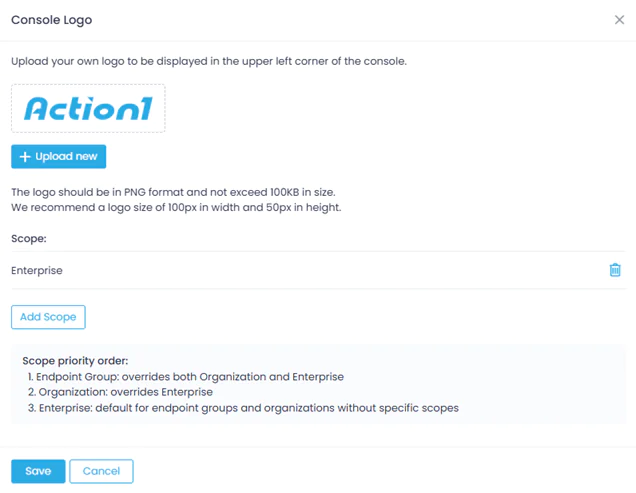
Customize the Action1 console branding to provide a consistent and personalized experience for your users and customers. You can create branding presets for individual organizations or propagate a custom look and feel across the entire enterprise. This includes:
- Console logo that will be displayed in the upper left corner of the Action1 console.
- End-user prompt logo that will be displayed in all end-user prompts shown by Action1 (such as reboot requests).
Preparing Logo Files
Before you start customization, prepare your logo files. Requirements are as follows:
- File format: PNG
- Maximum file size: 100 KB
- Recommended dimensions: 100 px × 50 px (width × height)
Providing Your Logo
To provide a custom logo for the web console or end-user prompt:
- In Action1, navigate to the Advanced page and select Console logo or End-user prompt logo.
- Click Upload new and upload the file.
- By default, this logo will be applied across the whole Action1 enterprise. If you want to apply it on the organization level, click Add scope and then from the list of organizations select the one you need.
- Save the settings.
See also: Remote Desktop.