
Installation on Linux Endpoints
Before You Begin
Make sure that the endpoints you plan to manage with Action1 meet the requirements listed in this section.
The Action1 agent installation requires root privileges.
The agent operates as a daemon; its files reside in several directories, in particular:
- /opt/action1/ – binary files
- /var/opt/action1/ – config files
- /var/log/action1/ – log files
During its operation, the agent will securely connect to Action1 Cloud using embedded information about your Action1 organization:
- The authentication certificate for mutual authentication.
- A private encryption key, specific to your organization.
The next sections explain how you can install the Action1 agent on a local or remote Linux machine.
Availability note: Support for Linux distributions other than Debian/Ubuntu is rolling out in stages and may not yet be available in all regions.
Step 1. Download the Action1 Agent Installer
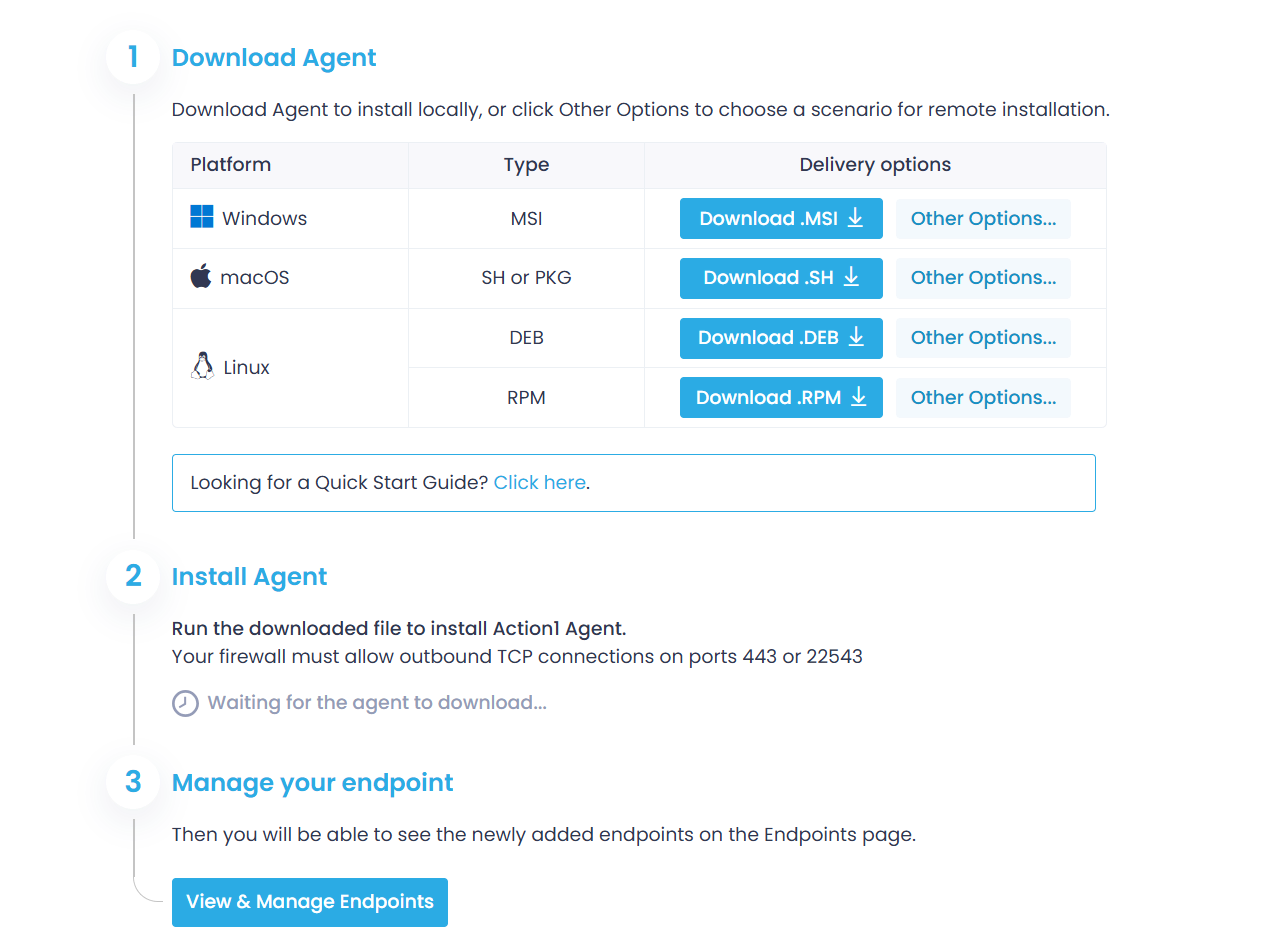
- In the Action1 console, click Install Agents in the top-right corner to open the Getting started wizard.
- On the Download Agent step, do any of the following:
-
- Click Download .DEB or Download .RPM (depending on the Linux OS distribution of the target endpoint) to run the installer locally.
- Click Other Options if you plan to install the agent on another machine or run an unattended installation.
-
Supported Linux distributions for deploying .DEB package
- Debian 10, 11, 12, 13
- Ubuntu 18.04, 20.04, 22.04, 24.04
- Kubuntu
- Linux Mint 22.2, 22.3
- Linux Mint Debian Edition (LMDE) 6, 7
- Linux Pop!_OS 22.04
Supported Linux distributions for deploying .RPM package
- AlmaLinux
- Amazon Linux
- CentOS 10
- Fedora 42, 43
- OpenMandriva
- openSUSE Leap 15, 16
- openSUSE Tumbleweed
- Oracle Linux 10
- Red Hat Enterprise Linux (RHEL) 8, 9, 10
- Rocky Linux
- SUSE Linux Enterprise Server (SLES)
- VMware Photon OS
Step 2. Install the Agents
Use one of the following scenarios:
- Interactive, UI-based installation
- Unattended installation (no UI)
- Direct download
Installation on the local machine
Do the following:
- In the Getting Started wizard, click Download.DEB or Download .RPMto obtain the package for automated agent installation.
- Locate the downloaded package and copy its full name, including the path, to the /tmp directory.
- Run the corresponding commands for the package manager, providing the package name and path.
Package format
Package manager to use
Commands
cp "action1_agent(your_org_name).deb" /tmp
cd /tmp
sudo apt install "./action1_agent(your_org_name).deb"
cp "action1_agent(your_org_name).rpm" /tmp
cd /tmp
sudo dnf install "./action1_agent(your_org_name).rpm"cp "action1_agent(your_org_name).rpm" /tmp
cd /tmp
sudo zypper install "./action1_agent(your_org_name).rpm"cp "action1_agent(your_org_name).rpm" /tmp
cd /tmp
sudo tdnf install "./action1_agent(your_org_name).rpm"This will automatically start the Action1 agent installation.
Installation on the remote machine
Interactive installation
This scenario is recommended for first-time users.
NOTE: Ensure the cURL utility is present on the target endpoint.
- In the Getting Started wizard, click Other options
- Use the first option to download and install the agent by copying the corresponding command line and running it on your target endpoints using root privileges.
Package format
Package manager to use
Commands
p="/tmp" && curl -o "{p}/action1_agent(Organization_name).deb" "https://app.region.action1.com/agent/id/Linux/agent(Organization_name).deb" && sudo apt install "{p}/action1_agent(My_Organization).deb" p="/tmp" && curl -o "${p}/action1_agent(Organization_name).rpm" "https://app.region.action1.com/agent/id/Linux/agent(Organization_name).rpm" && sudo dnf install "${p}/action1_agent(Organization_name).rpm" p="/tmp" && curl -o "${p}/action1_agent(Organization_name).rpm" "https://app.region.action1.com/agent/id/Linux/agent(Organization_name).rpm" && sudo zypper install "${p}/action1_agent(Organization_name).rpm" p="/tmp" && curl -o "${p}/action1_agent(Organization_name).rpm" "https://app.region.action1.com/agent/id/Linux/agent(Organization_name).rpm" && sudo tdnf install "${p}/action1_agent(My_Organization).rpm" Where:
curl– cURL (Client for URL) utility for the file download.-o– a parameter that instructs cURL to save the downloaded DEB file with the same name as in the URL.id– a unique ID associated with a downloadable agent setup for your organization.
Unattended installation
This option is recommended for advanced users who want to install the Action1 agent in unattended (silent) mode.
- In the Getting Started wizard, click Other options
- Use the second option to download and install the agent by copying the corresponding command line and running it on your target endpoints using root privileges.
NOTE: Ensure the cURL utility is present on the target endpoint.
Package format
Package manager
Commands
p="/tmp" && curl -o "{p}/action1_agent(Organization_name).deb" "https://app.region.action1.com/agent/id/Linux/agent(Organization_name).deb" && export DEBIAN_FRONTEND=noninteractive&& sudo apt-get install -y "{p}/action1_agent(Organization_name).deb" p="/tmp" && curl -o "${p}/action1_agent(Organization_name).rpm" "https://app.region.action1.com/agent/id/Linux/agent(Organization_name).rpm" && sudo dnf -y install "${p}/action1_agent(Organization_name).rpm" p="/tmp" && curl -o "${p}/action1_agent(Organization_name).rpm" "https://app.region.action1.com/agent/id/Linux/agent(Organization_name).rpm" && sudo zypper install -y --allow-unsigned-rpm "${p}/action1_agent(Organization_name).rpm" p="/tmp" && curl -o "${p}/action1_agent(Organization_name).rpm" "https://app.region.action1.com/agent/id/Linux/agent(Organization_name).rpm" && sudo tdnf -y --nogpgcheck install "${p}/action1_agent(My_Organization).rpm" Where:
curl– cURL (Client for URL) utility for the file download.-o– a parameter that instructs cURL to save the downloaded DEB file with the same name as in the URL.id– a unique ID associated with a downloadable agent setup for your organization.-y– instructs the package manager to skip interactive confirmation and automatically choose “yes” for all prompts.
In addition:
- for Tiny DNF:
-nogpgcheck– allows installation without GPG signature verification - for Zypper:
-allow-unsigned-rpm– allows installation of unsigned packages
Direct download
This option is recommended to those who want to download the agent installer and use it with configuration and package management tools. Do the following:
- In the Getting Started wizard, click Other Options.
- In the dialog displayed, navigate to the last option and copy the URL for downloading the installation package. It will look like this:
For DEB package:https://app.<region>.action1.com/agent/<id>/Linux/agent(<your_org_name).deb
For RPM package:https://app.<region>.action1.com/agent/<id>/Linux/agent(<your_org_name).rpmwhere<id>– a unique ID associated with a downloadable agent setup for your organization. - Paste the URL in your web browser. The agent installation package will be downloaded automatically. Use it with your package management tool.
Tip: Alternatively, you can use the Download .DEB and Download .RPM buttons to get the required package, as described earlier in this section.
Uninstalling Action1 Agent
To uninstall Action1 agent using the web console, in the Endpoints view, select the target endpoint and then from its Actions select Remove from Action1. See also Removing Action1 agents